
In this post we will explain how to create DBT models, we will continue the hospital example and we will transform the data from bronze schema and load to silver schema, first we will analyze the data, make some queries filter and transform the raw data from Bronze schema.
After filter the silver schema, we will create models to golden schema to show in our dashboards.
We will use macros in our models maybe i will explain in other post.
Default Models
As a default we found 2 models:
- my_first_dbt_model.sql
- my_second_dbt_model.sql
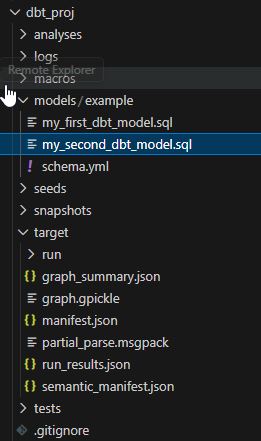
my_first_dbt_model.sql :
/*
    Welcome to your first dbt model!
    Did you know that you can also configure models directly within SQL files?
    This will override configurations stated in dbt_project.yml

    Try changing "table" to "view" below
*/

{{ config(materialized='table') }}

with source_data as (

    select 1 as id
    union all
    select null as id

)

select *
from source_data

/*
    Uncomment the line below to remove records with null `id` values
*/

-- where id is not null
my_second_dbt_model.sql :
-- Use the `ref` function to select from other models

select *
from {{ ref('my_first_dbt_model') }}
where id = 1
schema.yml :
version: 2

models:
  - name: my_first_dbt_model
    description: "A starter dbt model"
    columns:
      - name: id
        description: "The primary key for this table"
        data_tests:
          - unique
          - not_null

  - name: my_second_dbt_model
    description: "A starter dbt model"
    columns:
      - name: id
        description: "The primary key for this table"
        data_tests:
          - unique
          - not_null
If we execute dbt run to see this on the database :
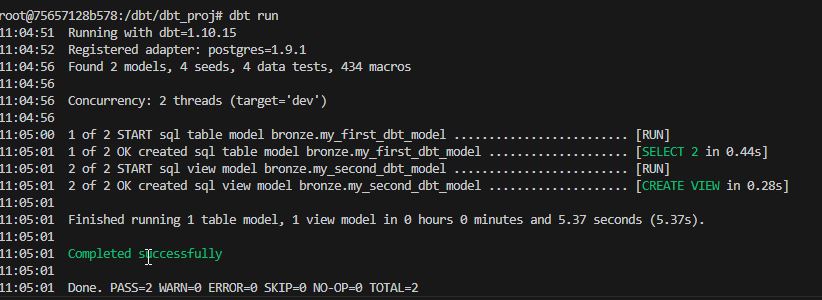
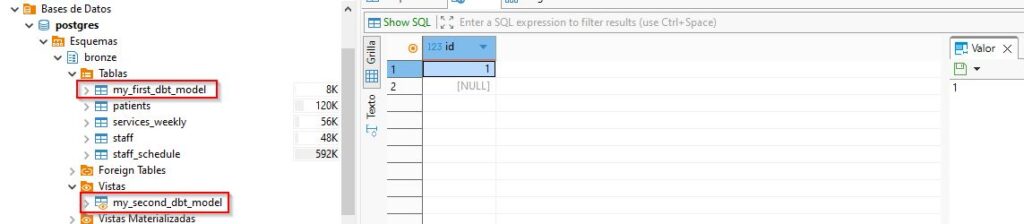
We can see the table and view created:
Dev Container + DBT + Postgresql + Metabase Part 4
Default macros
In our project we want to create every model in a schema that have name of the folder that contain the models. we have to modify the default macro :
macros/generate_schema_name.sql
{% macro generate_schema_name(custom_schema_name, node) -%}

    {%- set default_schema = target.schema -%}
    {%- if custom_schema_name is none -%}

        {{ default_schema }}

    {%- else -%}

        {{ default_schema }}_{{ custom_schema_name | trim }}

    {%- endif -%}

{%- endmacro %}
In this macro concatenate the default schema in our case bronze with the custom_schema_name = folder name, we will delete the concatenation
{% macro generate_schema_name(custom_schema_name, node) -%}

    {%- set default_schema = target.schema -%}
    {%- if custom_schema_name is none -%}

        {{ default_schema }}

    {%- else -%}

        {{ custom_schema_name | trim }}

    {%- endif -%}

{%- endmacro %}
Now we have to create 3 folders each for one schema:
- bronze
- silver
- gold
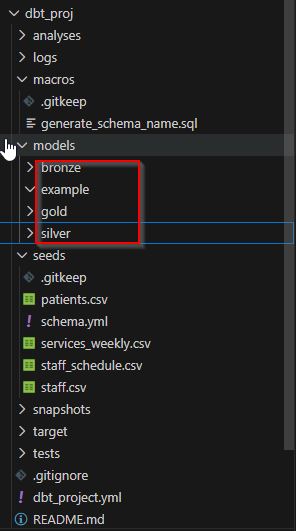
dbt_project.yml
Then we have to modify the dbt_project.yml file, to add the 3 schemas :
# Name your project! Project names should contain only lowercase characters
# and underscores. A good package name should reflect your organization's
# name or the intended use of these models
name: 'dbt_proj'
version: '1.0.0'

# This setting configures which "profile" dbt uses for this project.
profile: 'dbt_proj'

# These configurations specify where dbt should look for different types of files.
# The `model-paths` config, for example, states that models in this project can be
# found in the "models/" directory. You probably won't need to change these!
model-paths: ["models"]
analysis-paths: ["analyses"]
test-paths: ["tests"]
seed-paths: ["seeds"]
macro-paths: ["macros"]
snapshot-paths: ["snapshots"]

clean-targets:         # directories to be removed by `dbt clean`
  - "target"
  - "dbt_packages"


# Configuring models
# Full documentation: https://docs.getdbt.com/docs/configuring-models

# In this example config, we tell dbt to build all models in the example/
# directory as views. These settings can be overridden in the individual model
# files using the `{{ config(...) }}` macro.
models:
  dbt_proj:
    # Config indicated by + and applies to all files under models/example/
    bronze:
      +schema: bronze
      +materialized: table

    silver:
      +schema: silver
      +materialized: table

    gold:
      +schema: gold
      +materialized: table
We can see in the silver section of dbt_proj, the property +materializad: table , we can put view or materialized view, instead create a table create a view and in +schema : we can put the name of the schema like silver or plata
source.yml
We have to create source file to define the tables and schema.
sources:
  - name: silver
    tables:
      - name: patients
patients_clean.sql
We have to clean the patient table, for that we create the file patients_clean.sql, and filter the patient_id is not empty, to select the table patients in bronze schema we have to write the table and schema like this : {{ source(‘bronze’, ‘patients’) }}, we transform the name to change the string of the name
with source_data as (

 SELECT
    patient_id,
    initcap(name) AS patient_name,
    age,
    service,
    departure_date - arrival_date AS days_stayed,
    satisfaction
FROM   {{ source('bronze', 'patients') }}
WHERE patient_id IS NOT NULL

)

select *
from source_data
We execute dbt run
root@75657128b578:/dbt/dbt_proj# dbt run
14:23:27  Running with dbt=1.10.15
14:23:29  Registered adapter: postgres=1.9.1
14:23:30  Unable to do partial parsing because a project config has changed
14:23:34  [WARNING]: Configuration paths exist in your dbt_project.yml file which do not apply to any resources.
There are 2 unused configuration paths:
- models.dbt_proj.gold
- models.dbt_proj.bronze
14:23:34  Found 1 model, 4 seeds, 1 source, 435 macros
14:23:34
14:23:34  Concurrency: 2 threads (target='dev')
14:23:34
14:23:38  1 of 1 START sql table model silver.patients_clean ............................. [RUN]
14:23:38  1 of 1 OK created sql table model silver.patients_clean ........................ [SELECT 1000 in 0.48s]
14:23:38
14:23:38  Finished running 1 table model in 0 hours 0 minutes and 3.99 seconds (3.99s).
14:23:38
14:23:38  Completed successfully
14:23:38
14:23:38  Done. PASS=1 WARN=0 ERROR=0 SKIP=0 NO-OP=0 TOTAL=1
Then we check in the database on DBeaver the result:
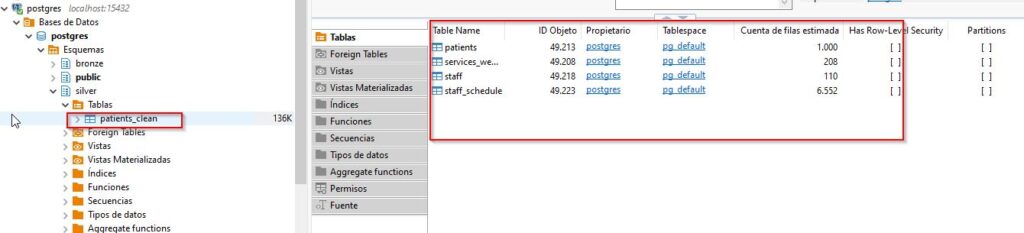
Finally we see the table patients_clean like the name of the file sql.
To summarize the steps to create the models :
- modify
generate_schema_name.sql - edit dbt_project.yml
- create folders with the name of the schema: bronze, silver and gold
- add source.yml
- create the sql model file in our case patients_clean.sql
- execute dbt run
Links:
https://docs.getdbt.com/reference/model-configs
Leave a Reply
You must be logged in to post a comment.